×
Success!
×
Info!
×
Warning!
×
Error!
Home
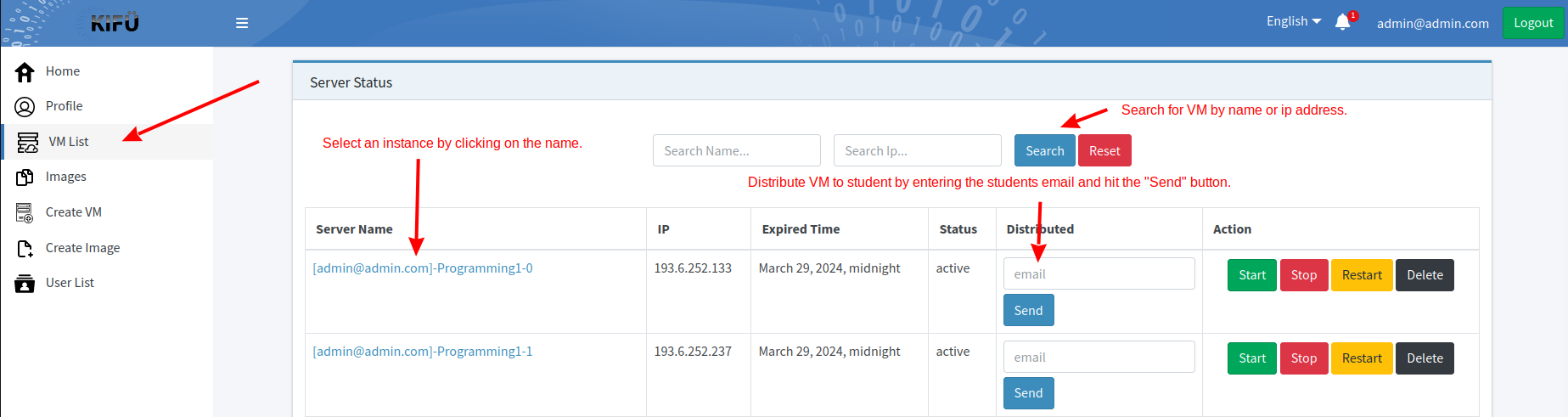
Creating virtual machines:
- Navigate to the 'Create VM' page:
- Follow the steps on the image:
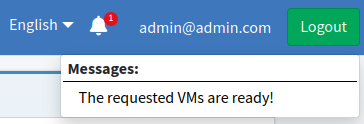
- If everyting is working fine, you will be redirected to the 'VM List' page. When the servers are ready you will receive a notification.


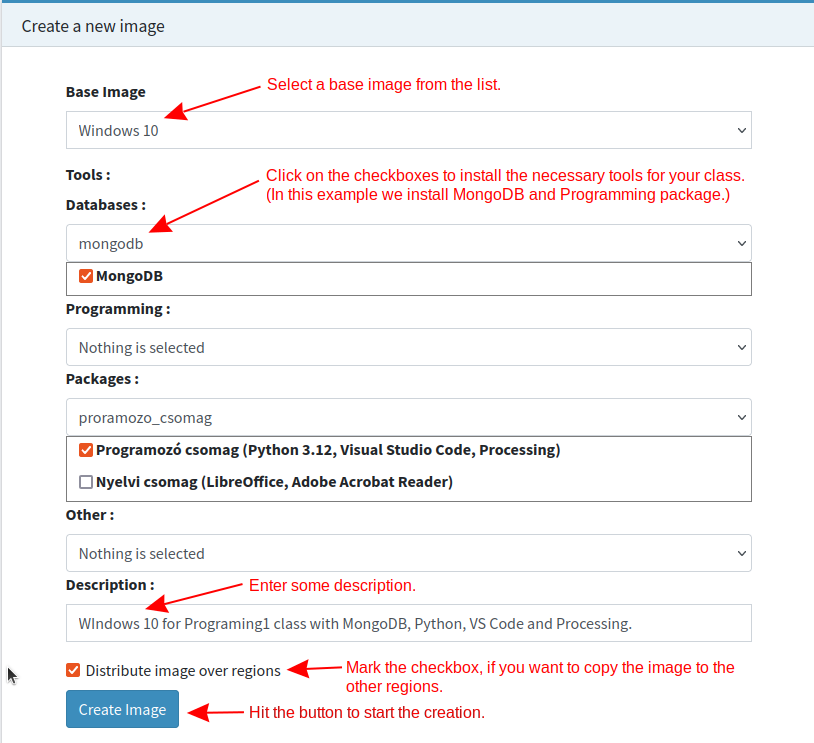
Creating image:
- Navigate to the 'Create Image' page.
- Follow the steps on the image:
- If everyting is working fine, you will be redirected to the 'Images' page. When the image is ready you will receive a notification.

Connecting to VMs:
- Navigate to the 'VM List' page, where you can see the VMs.
- Select a VM by clicking on the VM name.
-
Connecting to Windows instance:
In case of Windows instances, you can connect by using VNC or an RDP client. The Windows username is 'Admin' and the password is 'admin'. The first time you log in, you will be prompted to change your password.
-
Connecting to Linux instance:
In case of Linux instances, you can connect by using the built in WebSSH or an SSH client. In cas of Ubuntu instances, the username is 'ubuntu' and in case of Debian instances, the username is 'debian'. For Linux instances you must use provided private key.
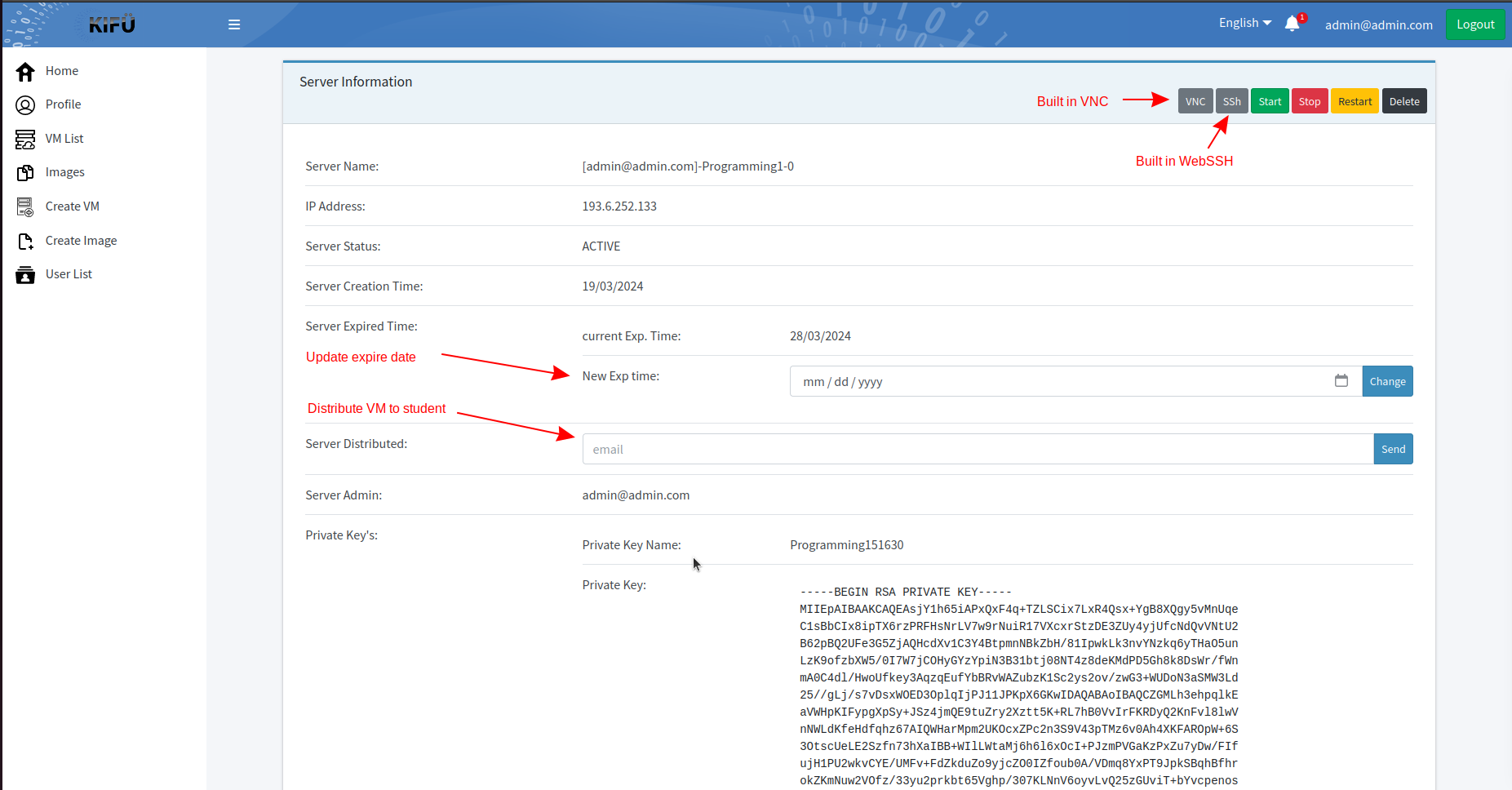
(A teacher can see all the VMs of a class. A student can only see the VMs to which it is assigned.)